
Setting up subscriptions in your WooCommerce store can create a steady revenue stream and improve customer retention. This guide walks you through using WPSubscription to implement subscription plans, manage payments, and enhance customer experience. Here’s the process in a nutshell:
Install WPSubscription: Purchase the plugin for $55/year from wpsubscription.co, upload it to WordPress, and activate it. Ensure compatibility with your WooCommerce version.
Create Subscription Plans: Set up simple or variable subscription products with options like free trials, payment schedules, and plan upgrades.
Configure Payment Gateways: Use Stripe, PayPal, or Paddle for recurring billing. Test each gateway thoroughly with both successful and failed transactions.
Test the System: Simulate customer actions like sign-ups, payments, and cancellations. Verify automated notifications for renewals, failed payments, and plan changes.
Enhance Customer Experience: Enable self-service options for managing subscriptions, updating payment details, and pausing or canceling plans.
Ensure Compliance: Add clear policies for privacy, terms, and cancellations to meet U.S. regulations.
Step 1: Get and Turn On WPSubscription
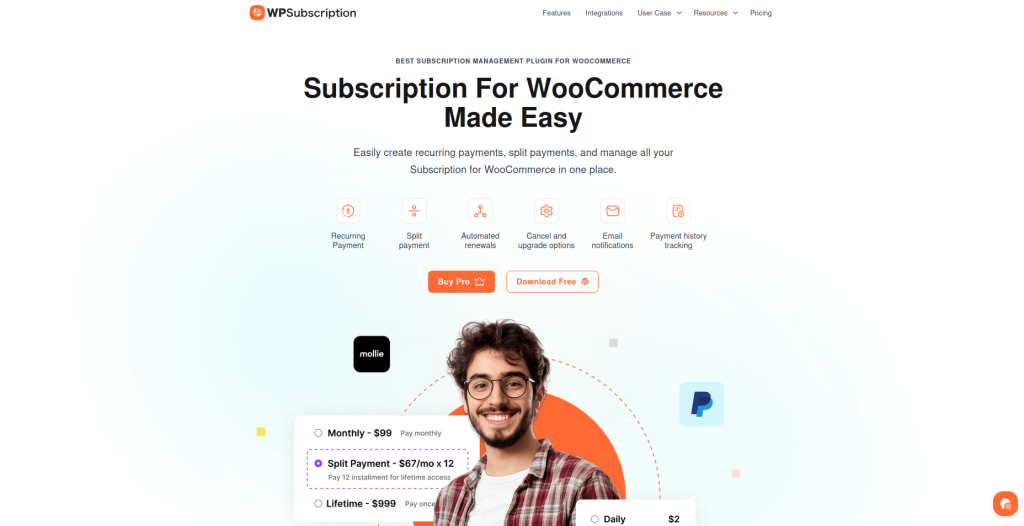
To set up payments that come in over and over, you need to use WPSubscription.
Get and Add WPSubscription
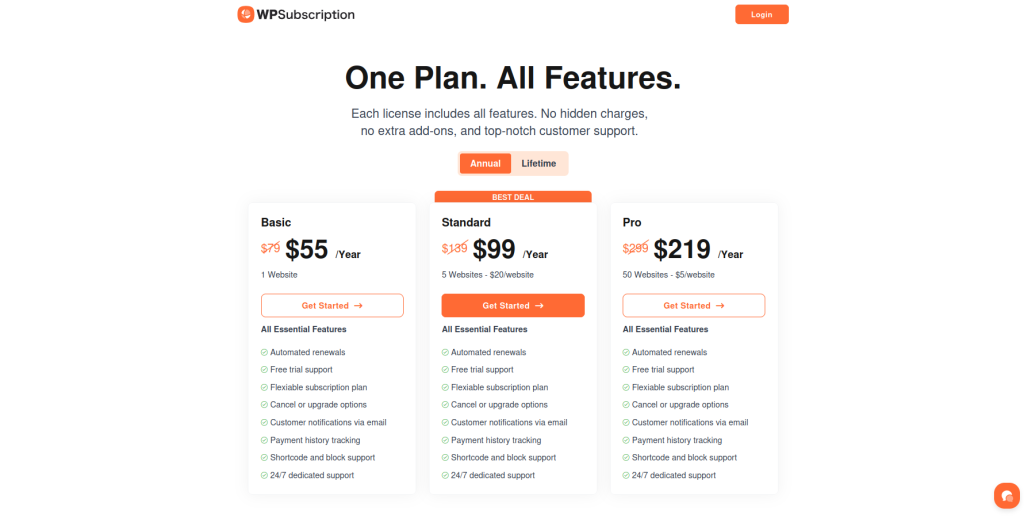
First, go to their main page, wpsubscription.co. One site costs $55 each year, but you can pay more to use on more sites.
After you buy it, download the plugin as a .zip file and put it on your computer. To add it, go to your WordPress admin page. Click Plugins > Add New. Add the WPSubscription .zip file, then hit Install Now and wait for it to finish. When it is done, hit Activate Plugin.
Now WPSubscription works, and you will see new choices in your menu. These let you start making and working with plans for people to sign up.
Before you start setting things up, make sure the plugin fits with your WooCommerce setup.
Make Sure the Plugin Works Well
WPSubscription works with the newest WooCommerce and many older versions too. For example, if WooCommerce 15.4.2 is the newest one, WPSubscription works from 15.3.0 up to 15.4.2.
It also works with High-Performance Order Storage (HPOS) and is good for WordPress Multisite. Be aware, though, that each plan and user stays with the site where it was bought.
Once you know it works with your WooCommerce, go to WooCommerce > Settings > Subscriptions in your main menu. From here, you can pick how you want people to pay and make your plans for them to sign up.
Step 2: Set Up Subscription Plans
After activating WPSubscription, it’s time to configure your recurring payment models. This includes setting up subscription plans that fit your business model, whether monthly, yearly, or any other cycle.
Create Subscription Products
To get started, navigate to Products > Add New in your WordPress dashboard. Here, you’ll create a product with recurring subscription settings.
In the Product data panel, choose between a simple or variable subscription type:
For a Simple subscription, you’ll need to fill out these key fields:
- Subscription Price: Determine the cost per billing cycle
- Payment Schedule: Select the billing frequency – weekly, monthly, quarterly, or yearly
- Subscription Length: Specify the subscription duration, or leave it blank for an ongoing plan
- Sign-up Fee: Add a one-time fee for new subscribers
Customize Plan Options
WPSubscription offers a variety of options to tailor your plans to your business needs:
Free Trials: Let customers try your service before committing. Set trial periods of 7, 14, or 30 days in your subscription settings.
Split Payments: Allow customers to break down larger fees into smaller installments. For example, a yearly fee can be divided into quarterly payments.
Plan Upgrades and Downgrades: Enable customers to switch between subscription tiers as their needs change. Billing adjustments can take effect immediately or with the next billing cycle, depending on your setup.
Flexible Billing Intervals: Choose from monthly, quarterly, or yearly intervals to match your business model.
Once you’ve customized these features, finalize your plan by setting pricing and quantity limits.
Set Pricing and Quantity Limits
When pricing your subscriptions, always use the U.S. dollar format (e.g., $49.99) for clarity and consistency. Ensure your pricing strategy aligns with your business goals and meets customer expectations.
Consider limiting the quantity of subscriptions per customer. For instance, allowing only one subscription of each type per account helps prevent duplicate sign-ups.
You can enforce this by setting the stock quantity to 1 and enabling the “Limit purchases to 1 item per order” option in your product settings.
Additionally, you can adjust renewal pricing to introduce special introductory rates for new subscribers or modify rates upon renewal. This flexibility ensures your pricing model stays competitive and aligns with your financial objectives.
Step 3: Set Up and Test Payment Gateways
Once your subscription plans are ready, the next step is to configure payment gateways to handle transactions smoothly. WPSubscription supports Stripe, PayPal, and Paddle, all of which are equipped for recurring billing.
Set Up Payment Gateways
To get started, navigate to WooCommerce > Settings > Payments. Each payment gateway requires specific setup steps to ensure secure and seamless transactions.
For Stripe, log in to your Stripe dashboard and locate your API keys. Copy the Publishable Key and Secret Key, then paste them into WPSubscription’s Stripe settings.
Make sure to enable Test Mode during the setup phase to avoid processing live transactions while testing.
For PayPal, you’ll need a PayPal business account. Retrieve your Client ID and Client Secret from the PayPal Developer dashboard.
Set the environment to “Sandbox” for testing purposes or “Live” for production. Once configured, PayPal will automatically manage subscription renewals.
For Paddle, enter your Vendor ID and API Key from the Paddle dashboard. Paddle simplifies the process by acting as the merchant of record, taking care of tax compliance and payment processing on your behalf.
After entering the required credentials for each gateway, click Test Connection to ensure WPSubscription can communicate with the selected payment processors.
A successful test confirms that your setup is working correctly and ready to handle transactions.
Once your gateways are configured, it’s time to test the payment system to ensure everything runs smoothly.
Test Payment Processing
After setting up your gateways, simulate transactions to verify that the payment process works correctly.
Start by creating test subscription purchases. For Stripe, use the test card number 4242 4242 4242 4242, along with any future expiration date and a three-digit CVC. For PayPal, utilize their sandbox environment with test accounts.
Test failed payment scenarios as well. For example:
- Use 4000 0000 0000 9995 to simulate insufficient funds
- Use 4000 0000 0000 0069 to test expired cards
- Use 4000 0000 0000 0119 to trigger processing errors
Ensure the system displays clear error messages for failed transactions, helping both customers and administrators understand the issue.
Next, confirm that the recurring payment process runs automatically. Adjust the billing cycle of a test subscription to shorter intervals, such as every minute or hour, and monitor whether subsequent payments are processed as expected.
This will validate that your automated renewal system is functioning properly.
Additionally, test proration calculations for mid-cycle plan changes. For example, if a customer switches from a $29.99 monthly plan to a $49.99 plan halfway through the billing cycle, the system should calculate and charge the prorated amount of $10.00 for the remaining period.
Set Up Automated Notifications
With payment processing confirmed, it’s important to set up automated email notifications to keep customers informed about their subscriptions. Head to WooCommerce > Settings > Emails to configure these messages.
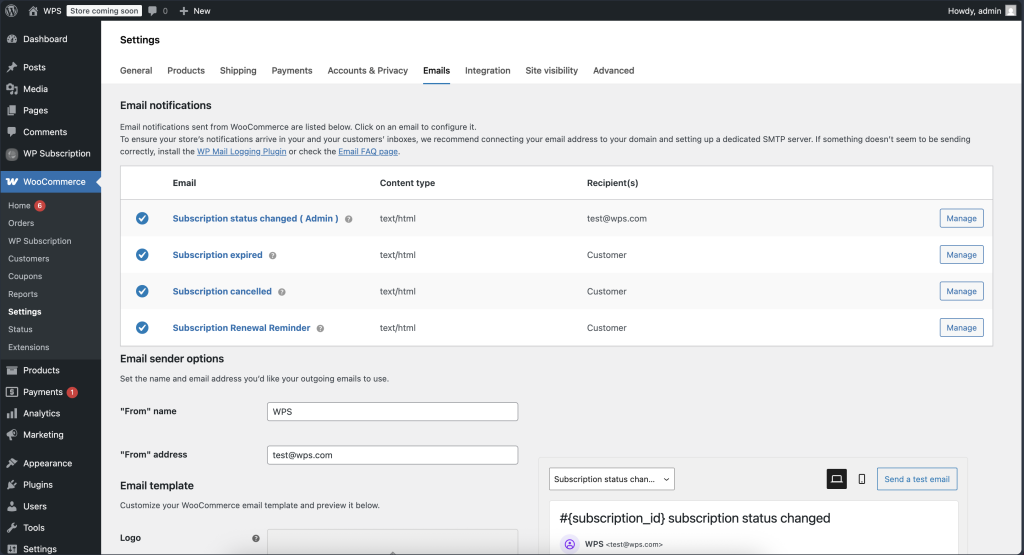
Payment confirmation emails should be sent immediately after a successful transaction. Include details like the subscription amount (e.g., $29.99), next billing date (formatted as MM/DD/YYYY), and customer service contact information.
Renewal reminder emails can help reduce churn by notifying customers of upcoming charges. Set these to go out 3-7 days before the renewal date, and include details like the renewal amount, billing date, and instructions for updating payment methods.
Failed payment alerts should notify both customers and administrators when a transaction fails. Customers should receive clear instructions for updating their payment information, while admins can use these alerts to proactively resolve issues.
Configure retry attempts – typically 3-4 retries over 7-10 days – before canceling the subscription automatically.
Subscription status change notifications should inform customers when their subscription is paused, resumed, upgraded, downgraded, or canceled.
These emails should clearly explain what has changed, when it takes effect, and any necessary next steps.
During your testing phase, trigger each type of email notification to ensure they are sent promptly, display correctly across various email clients, and contain accurate subscription details.
Verify that unsubscribe links work and that customers can manage their email preferences without hassle.
Step 4: Improve Customer Experience
Once your technical setup is up and running smoothly, it’s time to focus on making things better for your subscribers. A great customer experience keeps people coming back and helps cut down on support issues.
Enable Self-Service Options
You can set up self-service options in WPSubscription > Settings > Customer Portal. These tools let your subscribers manage their accounts on their own, which saves time for both them and your support team.
The ‘My Subscriptions’ dashboard is a key feature. It allows customers to view all their subscription details, including active, paused, or canceled plans.
Important information like the next billing date (in MM/DD/YYYY format), pricing, and the status of their plans is displayed clearly.
Make sure to enable plan upgrade and downgrade options. This lets customers adjust their subscriptions without needing to contact support.
WPSubscription will automatically handle prorated charges for mid-cycle changes, ensuring everything stays fair and transparent.
Another helpful feature is the pause and resume option. Customers can temporarily put their subscriptions on hold when needed, and you can set a maximum pause duration to prevent indefinite suspensions. During this time, their billing stops, but they still have access to their account.
Updating payment methods should be quick and secure. Allow customers to update their payment details through Stripe’s secure system. This reduces the chances of losing subscribers due to expired or replaced cards.
For cancellations, consider offering alternatives like lower-tier plans, discounts, or the option to pause their subscription. If they still decide to cancel, make the process simple and hassle-free.
Set Up US-Specific Settings
Adapting your settings to the needs of American customers builds trust and familiarity. Start by setting your store’s base location to the United States in WooCommerce > Settings > General.
If you’re using WooPayments, enable Stripe Billing to improve reliability for subscriptions. Go to Payments > Settings in WooPayments, scroll to the Advanced settings section, check “Enable Stripe Billing for future subscriptions”, and click “Save Changes.” This feature ensures recurring payments are processed even during website downtime.
For PayPal users, enabling Enhanced Recurring Payments can make a big difference. This lets customers pay with credit cards directly through PayPal without needing a PayPal account, which can improve checkout conversion rates.
Don’t overlook tax settings. US businesses need to configure state-specific sales tax rates in WooCommerce > Settings > Tax. Make sure your subscription products are correctly categorized for tax purposes.
Remember, tax rules can vary by state, especially between digital services and physical products, so double-check your compliance.
These adjustments ensure your subscription setup aligns with the preferences and expectations of US customers.
Test Email and Dashboard Usability
Before launching, thoroughly test the customer-facing parts of your service to ensure they meet American user expectations and accessibility standards.
Create test accounts and go through the subscription process as if you were a customer. The My Account dashboard should load quickly and present subscription details in a clear, easy-to-read format.
Test common actions in the subscription management workflow, such as upgrading a plan, updating payment details, pausing a subscription, and canceling.
Each action should provide immediate confirmation and update the dashboard in real time.
For example, if a customer pauses their subscription, they might see a message like, “Your subscription has been paused until 01/15/2025. You will not be charged during this period.”
Make sure the portal is mobile-friendly, as many users manage subscriptions on their phones. Buttons should be easy to tap, text should be readable without zooming, and all forms should work flawlessly on touchscreens.
Pay close attention to error messages and edge cases. Clear, helpful error messages can prevent frustration and reduce the need for support.
Lastly, test the cancellation process thoroughly, keeping in mind legal requirements like California’s Automatic Renewal Law, which mandates an easy-to-use cancellation option.
The process should be straightforward and completed in just a few steps.
Thorough testing ensures your subscription service delivers a smooth and consistent experience for your customers.
Step 5: Final Testing and Launch
After configuring and testing your subscription service, it’s time to get everything ready for launch. This final phase ensures that any potential issues are resolved before real customers start using your service.
Run Complete System Testing
Use multiple test accounts to simulate the full customer experience, from selecting a product to completing checkout. Confirm that pricing in US dollars is accurate, tax calculations are correct, and the system performs smoothly.
Test various subscription scenarios thoroughly. This includes monthly and annual billing cycles, different subscription tiers, and multiple payment options.
If you offer free trials, make sure they display properly and transition seamlessly to paid billing.
For instance, if you provide a 14-day free trial, verify that customers see a message like, “Your free trial ends on 12/28/2025” along with clear details about the next billing date.
Simulate both successful and failed payments to ensure the system handles these situations appropriately. Failed payments should trigger clear error messages and guide customers on how to update their payment details.
Check how subscription modifications are handled, including prorated charges and updated billing dates.
Use WPSubscription’s testing tools to temporarily adjust subscription dates and confirm that automatic renewals function correctly. Subscribers should receive timely notifications before and after billing.
Finally, test cancellation workflows to ensure the process is straightforward and complies with US consumer protection laws.
Customers should receive immediate confirmation of their cancellation along with clear information about when their access will end.
Once you’ve validated the system through simulated purchases and changes, review both the customer and admin interfaces to ensure everything works as expected.
Check Customer and Admin Views
Your customer-facing interface should be user-friendly and error-free. Log in as a test customer and explore the My Account section.
The subscription dashboard should load quickly and display all key details clearly. Ensure dates follow the MM/DD/YYYY format and dollar amounts are displayed correctly (e.g., $29.99).
Verify that subscription status indicators are accurate. Active subscriptions should prominently display the next billing date.
Paused subscriptions should clearly show when they’ll resume, and canceled subscriptions should indicate the end date of access.
Test mobile responsiveness thoroughly. Many users manage subscriptions on their smartphones, so make sure every button, form, and page functions smoothly on both iOS and Android devices.
Test common actions like updating payment information or changing plans on smaller screens.
From the admin side, check your WooCommerce dashboard. Navigate to WooCommerce > Subscriptions to confirm that all test subscriptions appear with the correct status, billing schedules, and customer details. The subscription list should be easy to filter and search.
Test the admin notification system to ensure you receive alerts for failed payments, cancellations, and other critical events. These notifications help you stay informed and address issues promptly.
Review the reporting and analytics features. WPSubscription provides key metrics like monthly recurring revenue (MRR), churn rates, and customer lifetime value. Make sure these reports generate correctly and offer actionable insights for your business.
Lastly, check customer support tools within the admin interface. You should be able to view a customer’s subscription history, process refunds, and make account adjustments easily. These tools are essential for delivering excellent service.
With both the front-end and back-end systems verified, you’re ready to finalize launch preparations.
Prepare for Launch
Before going live, double-check all settings. Ensure that your payment gateways are switched from test mode to live mode – this is a critical step that’s easy to overlook. If left in test mode, customers won’t be able to complete purchases.
Customize email templates to align with your brand and provide clear subscription details. Confirmation emails should include key information like the billing amount, next payment date, and instructions for managing the subscription.
Welcome emails should guide new subscribers on how to access their benefits and manage their accounts.
Backup your website completely, including your database, files, and custom configurations. A recent backup gives you peace of mind and a quick recovery option if anything goes wrong during launch.
Set up monitoring systems to track your service’s performance. This includes uptime monitoring for your website and alerts for payment processing issues. Tools like Google Analytics can help you monitor conversion rates and user behavior from day one.
Create a launch day checklist to ensure nothing is overlooked. This should include switching payment gateways to live mode, removing test content, and notifying your team about the launch. Assign clear roles to team members so everyone knows their responsibilities.
Finally, prepare your customer support resources. Develop a knowledge base with answers to common questions about subscriptions, billing, and account management.
Train your support team on WPSubscription’s features so they can assist customers effectively. Having strong support in place from day one builds trust and reduces customer churn.
Your subscription service is now ready to welcome real customers. The extensive testing you’ve completed ensures a smooth and professional experience from the very first interaction.
Step 6: Set Up Policies and Compliance
If you’re running a subscription business in the US, having clear legal documentation and open communication with your customers is non-negotiable.
These policies not only safeguard your business but also ensure your subscribers fully understand the terms of your service.
As you wrap up your subscription setup, putting these policies in place is crucial for earning trust and staying compliant with US regulations.
Add Legal and Policy Documentation
Your subscription service must include detailed policies that address recurring billing and customer rights. Here’s what you need to cover:
Privacy Policy: Explain how you collect, store, and use customer data, ensuring compliance with state-specific regulations like the California Consumer Privacy Act (CCPA).
Terms and Conditions: Provide a clear breakdown of billing cycles, automatic renewals, price adjustments, and service availability.
Make sure to specify when charges will occur and how customers can modify or cancel their subscriptions.
Refund and Cancellation Policy: Describe the cancellation process, outline whether refunds are available, and clarify when access to your service ends after a subscription is canceled. Ensure this policy aligns with federal and state laws.
Place these documents where customers can easily find them – usually in the footer of your website. Additionally, keep a record of dated versions to show exactly which terms applied when a customer signed up.
Conclusion
Now that you’ve followed the detailed setup and testing steps, your WooCommerce subscription system is ready to go.
By carefully moving through each phase – from installing the plugin and configuring subscription plans to setting up payment gateways and defining clear policies – you’ve created a solid framework for generating recurring revenue.
Testing everything thoroughly before launch is absolutely crucial. It ensures the subscription process – whether it’s sign-ups, renewals, or cancellations – runs without a hitch.
This proactive step helps you identify and fix potential problems before they affect your customers, minimizing complaints and cancellations. Plus, it guarantees a smooth checkout experience, which is essential for customer satisfaction.
Every detail in your setup matters. Whether it’s a payment gateway that struggles with renewals, email notifications that fail to send, or unclear cancellation policies, even small errors can lead to big headaches later.
A well-functioning subscription system not only stabilizes your revenue but also builds customer trust. With your system live and running smoothly, you now have a reliable source of recurring income.
Features like automated renewals, flexible billing options, and customer self-service tools not only lighten your workload but also improve the overall experience for your customers.
Your WooCommerce store is now equipped with a subscription system that’s ready to grow alongside your business.
Keep an eye on your subscription metrics and listen to customer feedback to make ongoing improvements.
FAQs
How can I confirm that WPSubscription works with my WooCommerce setup before buying?
Before integrating WPSubscription with your WooCommerce store, make sure your WooCommerce version aligns with the plugin’s requirements.
It’s also important to confirm that your server or hosting environment meets any necessary specifications, such as compatible versions of PHP and WordPress.
Taking these steps upfront can help you sidestep potential problems and ensure everything runs smoothly.
How can I test Stripe and PayPal to ensure they work reliably for recurring payments?
To make sure Stripe and PayPal are properly configured for recurring payments, start by switching your payment gateway to test mode. Use the test credit card details provided by the gateway to run simulated transactions.
Check that payments are processed smoothly, recurring charges are scheduled correctly, and any errors are handled properly.
After completing your testing, switch the gateway back to live mode so you can start accepting real payments.
Take a moment to double-check all your settings to ensure there are no interruptions for your customers.
How can I improve the customer experience to reduce cancellations and make subscription management easier for users?
To enhance the customer experience and minimize cancellations, focus on creating a smooth and straightforward subscription process.
Start by offering flexible subscription options tailored to various preferences, and ensure the terms are communicated clearly to avoid any misunderstandings.
Make life easier for your customers by including a self-service dashboard where they can update payment details, switch plans, or even cancel if necessary – without any hassle.
Keep the connection strong by sending timely notifications about upcoming payments or renewals, so there are no surprises.
On top of that, provide responsive and helpful customer support to quickly address any issues or questions. A positive and hassle-free experience builds trust and helps keep customers loyal.