When you hear “self-hosted WordPress site,” think of one word: ownership. It means your website is completely yours—from the design and features right down to your valuable customer data.
It’s like owning your own retail building instead of renting a small kiosk in a mall. You set the rules, you design the layout, and you keep all the profits. This approach gives you the ultimate freedom to build and scale your online store exactly how you envision it.
Self Hosted WordPress.org vs Hosted WordPress.com
It's easy to get confused between the two flavors of WordPress. To put it simply, WordPress.org is the software you download and install on your own hosting account (self-hosted), while WordPress.com is a service that hosts the site for you.
For any serious ecommerce merchant, the choice is clear. Let’s break down the core differences.
| Feature | Self-Hosted WordPress (WordPress.org) | Hosted WordPress.com |
|---|---|---|
| Control | 100% control over files, data, and design. | Limited control; you operate within the platform's rules. |
| Monetization | Sell anything you want, run your own ads. No restrictions. | Restricted. You need a high-tier plan to run ads or use certain ecommerce features. |
| Plugins | Access to over 59,000+ free and premium plugins. | Only available on higher, more expensive plans. The free plan has no plugin access. |
| Themes | Use any theme from any developer, or build a custom one. | Limited to themes available in the WordPress.com theme directory. |
| Cost | You pay for a domain and hosting. The software is free. | "Free" plan is very limited. Business plans can be costly. |
| Maintenance | You are responsible for updates, security, and backups. | The platform handles technical maintenance for you. |
While the hosted version seems easier, those limitations quickly become a roadblock for a growing store. A self-hosted site is the only path to true ownership and unrestricted growth.
Why a Self Hosted WordPress Site Is Your Store's Foundation
Imagine you're building a physical store. You have two choices: rent a pre-built space in a crowded mall (WordPress.com) or buy your own land and construct a custom building (a self-hosted WordPress site). The mall is easy and requires less work upfront, but you're stuck with their rules. You can't change the structure, you have limited signage, and a portion of your success goes back to the mall owner.
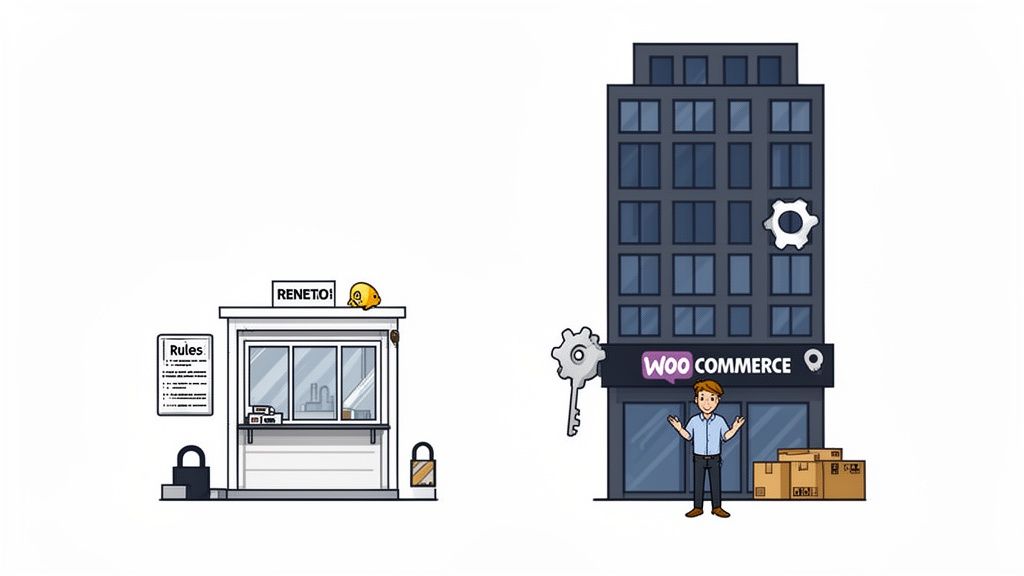
Owning your own building, however, gives you total control. You design the layout, pick the paint, install any feature you want, and build as many floors as you need. This is the essence of self-hosting with WordPress.org. You choose a hosting provider (your "land"), install the free WordPress software (your "building materials"), and create a digital storefront that is 100% yours.
The Power of Ownership and Control
For an ambitious ecommerce business, this level of control isn't just a perk; it's a necessity. It’s what lets you integrate powerful tools without asking for permission.
For example, you can seamlessly add:
- WooCommerce: The world's most popular ecommerce plugin, turning your site into a full-featured online store.
- WPSubscription: A specialized plugin that lets you offer subscription products, creating a stable, predictable recurring revenue stream.
On a self-hosted site, you’re never limited by a platform's built-in features or forced to pay extra for essential functions. You have the freedom to install any theme, plugin, or payment gateway that best serves your customers and your business goals.
A self-hosted WordPress site is the only platform that offers true digital sovereignty. You own your data, you control your features, and you dictate your financial future without a landlord taking a cut.
This ownership model is why self-hosted WordPress is the dominant force online. The ecosystem powers around 42.6% of all websites globally and commands a massive 59.9% share of the content management system market. You can dig into more stats about WordPress's market dominance on Colorlib.
This widespread adoption means you are building on a proven, stable, and future-proof foundation.
The Foundation for Scalable Growth
While renting a space might seem easier at first, it quickly becomes restrictive as you grow. A self-hosted WordPress site is built for scale.
When your traffic surges, you can upgrade your hosting plan. When you want to launch a new product line or a membership tier, you can install the perfect plugin to make it happen.
This path does require a bit more setup initially, but it’s an investment in your business's long-term health and profitability. It's the strategic choice for any serious merchant who wants to build a scalable, profitable, and independent online empire.
Alright, you've decided a self-hosted WordPress site is the way to go. Now for the fun part: picking your digital address and the plot of land to build on. This means choosing a domain name and a web host.
Think of it like this: your domain is your store's street address, and your hosting is the piece of land where you’ll actually build your shop. Both choices are critical, especially for a WooCommerce store that needs to be fast, secure, and ready for customers.
Finding the Right Home for Your Website
Your hosting plan is all about the resources your online store gets. A small pop-up shop doesn't need the same space as a huge department store, and the same goes for your website. Your hosting should fit where your business is today and where you plan to take it.
Here are the most common options, explained simply.
Shared Hosting: This is like renting an apartment. You share the building's resources (server space, power) with a bunch of other websites. It's the most affordable choice, perfect for a brand-new store just getting started. The only catch? A "noisy neighbor"—another site on your server getting a sudden traffic spike—can sometimes slow you down.
VPS (Virtual Private Server) Hosting: Think of this as a townhouse. You’re still in a shared structure, but you have your own private, walled-off space with guaranteed resources. This gives you more power and stability than shared hosting, making it a great upgrade for growing WooCommerce stores that need consistent performance for things like subscription renewals.
Dedicated Hosting: This is like owning a private house. The entire server and all its power belong exclusively to you. It offers the absolute best performance, control, and security, but it’s a premium option. This is the right fit for high-traffic, enterprise-level stores.
Managed WordPress Hosting: This is a "concierge" service for your WordPress site. It's like having a property manager for your apartment or house. The hosting company handles all the technical chores for you—updates, security monitoring, and daily backups. It’s an amazing choice for business owners who want the power of self-hosting without the day-to-day maintenance headaches.
For a new WooCommerce store, a quality Shared plan or a small VPS is usually the sweet spot. You get the reliability you need to make your first sales without overpaying for power you aren't using yet. The best part about a self-hosted WordPress site is you can always upgrade your plan as your business grows.
Selecting Your Brand's Digital Identity
Your domain name is your unique spot on the internet (like yourstore.com). This is a huge part of your brand, so choose wisely. It needs to be memorable, easy to type, and connected to what you do.
When you're brainstorming names, keep these tips in mind.
Best Practices for Choosing a Domain:
- Keep It Short and Simple: Long, complicated names are easy to forget and even easier to mistype.
- Use Your Brand Name: If you can, make your domain your business name. It creates a clean, professional look.
- Aim for .com: It's still the most recognized and trusted domain extension out there. If your first choice is taken,
.coor.storeare solid alternatives. - Avoid Hyphens and Numbers: They just make the name harder to share verbally and can confuse people.
When you're choosing your online identity, understanding the difference between a domain vs subdomain is crucial. Your main store should always live on a primary domain, since that's what carries the most authority with search engines.
Once you’ve landed on the perfect name, you can register it through your hosting provider or with a separate domain registrar. Many hosts even throw in a free domain for the first year when you buy a hosting plan, which makes setting up your new self-hosted WordPress site even easier.
Alright, you've got your domain name and hosting sorted. Now for the fun part—turning that empty space into a real, revenue-ready online store on your new self-hosted WordPress site.
This isn't a checklist for developers. It's a simple, straightforward guide for entrepreneurs, walking you through the essential steps to get your store up and running.
This simple workflow shows just how straightforward the process is. You handle the foundation first, then you build.
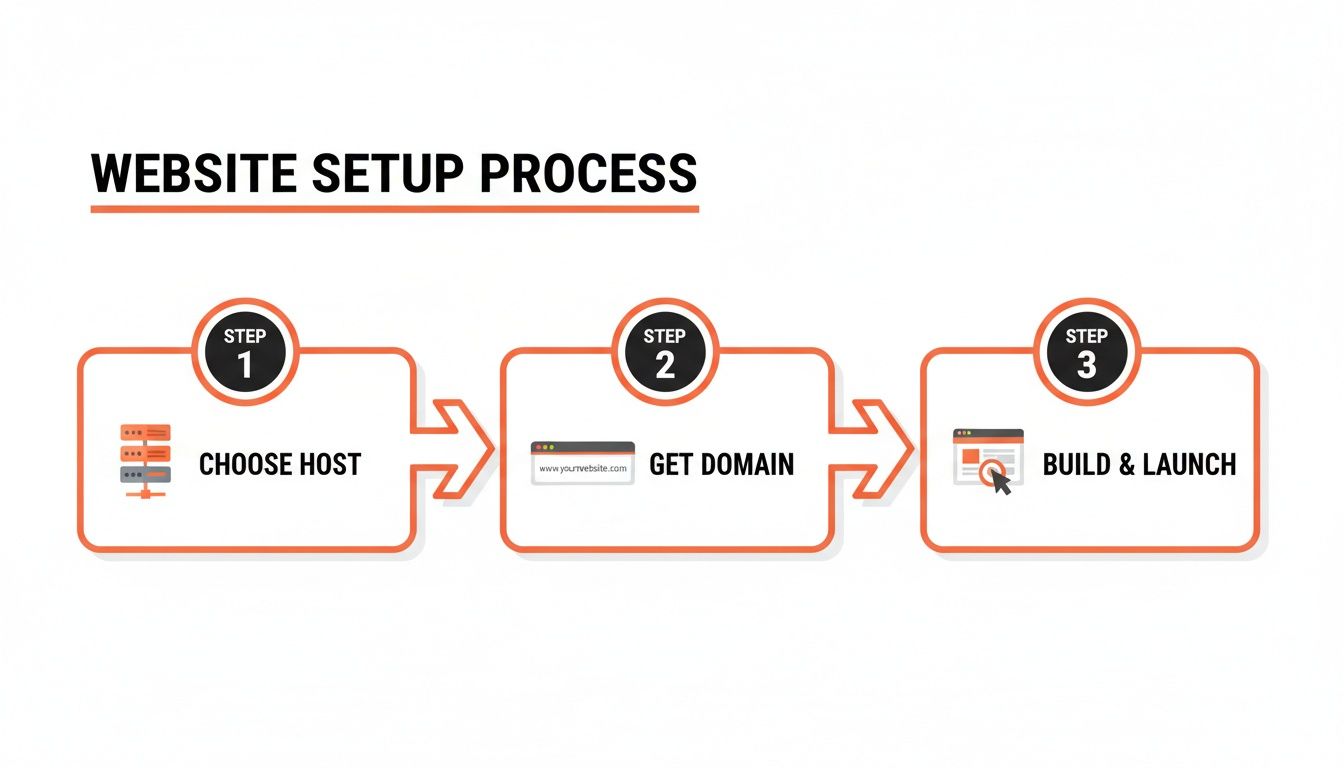
Let's break it down into five key milestones. Each step builds on the last, taking you from a blank slate to a fully functional ecommerce engine.
Checklist for a Successful Store Launch
1. Install WordPress with a Single Click
First things first: install the WordPress software. Forget about the old days of manual uploads and complex database configurations. Modern hosting has made this incredibly easy.
Just log into your hosting account's control panel. Look for an icon labeled "WordPress Installer" or "Softaculous." It’s a tool that does all the heavy lifting for you. With just a few clicks, you'll:
- Choose the domain you want to use.
- Set an administrator username and a strong password.
- Add your email address.
Click "Install," and the system will have your new WordPress site ready in minutes. You'll get a link to your admin dashboard, which you can always access at yourdomain.com/wp-admin.
2. Secure Your Site with an SSL Certificate
Before you touch anything else, you need to activate your SSL certificate. Think of SSL (Secure Sockets Layer) as the digital bodyguard for your store. It encrypts all the data shared between your customers and your website, keeping sensitive information like passwords and credit card numbers safe.
An SSL certificate is non-negotiable for any ecommerce store. It builds trust, it’s required by payment gateways like Stripe and PayPal, and it even helps your search engine ranking.
Most hosts include a free SSL certificate with their plans. Activating it is usually a one-click process in your hosting panel. Once it's live, you'll see a padlock icon in your browser’s address bar, and your site’s URL will start with https://. Your store is now secure and ready for business.
Adding Ecommerce and Subscription Power
With a secure WordPress site in place, it’s time to add the features that actually make you money. We'll do this by installing plugins—specialized apps that add new capabilities to your site.
3. Install and Configure WooCommerce
WooCommerce is the plugin that transforms your WordPress site into a powerhouse online store. It's the engine behind millions of businesses, big and small, and it's completely free.
To get started:
- From your WordPress dashboard, go to Plugins > Add New.
- Search for "WooCommerce," then click Install Now and Activate.
- A setup wizard will pop up, guiding you through the basics like your store's address, currency, and the types of products you'll be selling.
This initial setup creates the skeleton of your store. From here, you can start adding products, setting up shipping zones, and configuring your tax settings.
4. Integrate WPSubscription for Recurring Revenue
If subscriptions, memberships, or any kind of recurring payment is part of your business model, now is the perfect time to set it up. The WPSubscription plugin is built to work seamlessly with WooCommerce, making this process a breeze.
Just like with WooCommerce, you’ll navigate to Plugins > Add New, upload the WPSubscription plugin file, and activate it. The plugin’s own setup guide will help you create subscription products, define billing schedules, and even offer free trials. This is how you build a predictable, stable income stream.
5. Connect Your Payment Gateways
Finally, you need a way to get paid. Payment gateways are the services that securely handle your customers' payments. While WooCommerce supports dozens of them, the two most important for a subscription business are Stripe and PayPal because of their solid support for recurring billing.
You can install the official Stripe and PayPal plugins directly from your WooCommerce settings. Just follow the on-screen prompts to connect your accounts. Once that’s done, your store is officially open and ready to take its first subscription payment.
And if you're looking for more ways to enhance your store, check out our guide on the best plugins for WordPress ecommerce.
Securing and Maintaining Your Digital Storefront
When you run a **self-hosted WordPress site**, you’re not just the owner—you’re also the head of security. Think of it like locking the doors and setting the alarm at a physical shop each night. It’s a simple, non-negotiable routine that protects your most valuable asset.The good news is that securing and maintaining your WooCommerce store is much easier than it sounds. You don’t need to become a cybersecurity expert overnight. It’s all about building good habits that stop problems before they can start, ensuring your store stays a safe and trusted place for customers.
Building a Strong Digital Defense
Your first line of defense is a proactive one. Just like a security camera wards off trespassers, a Web Application Firewall (WAF) acts as your site’s digital lookout. It sits between your website and all incoming traffic, blocking sketchy requests and known threats before they ever reach your store.
Many quality hosting providers include a WAF in their plans, but you can also get fantastic firewall protection from dedicated security plugins. This is your 24/7 frontline defense against bots and hackers.
Next, you need to think about who has the keys to your store. Weak or reused passwords are one of the most common ways attackers sneak in. A strong password policy is absolutely essential for every user account.
- Enforce Complexity: Require a mix of upper and lowercase letters, numbers, and symbols.
- Set Expiration Dates: Prompt users to change their passwords every 90 days.
- Use Two-Factor Authentication (2FA): This adds a second layer of verification, like a code sent to a phone, making it much harder for anyone to get in without permission.
For even more specific control, a WordPress password protect plugin can lock down certain pages or content, adding another layer of security right where you need it most.
The Importance of Updates and Backups
The WordPress community is always working to improve software and patch security holes. Running outdated code is like leaving a window unlocked at your shop—it’s an open invitation for trouble.
Keeping your WordPress core, plugins (especially WooCommerce and WPSubscription), and themes up to date is one of the most powerful security moves you can make. Most updates just take a single click from your dashboard. Make it a weekly habit to check for and apply anything that’s pending.
Think of backups as your store's insurance policy. You hope you never have to use it, but if disaster strikes—like a bad update or a security breach—a recent backup is the only thing that will get you back in business in minutes.
Your store is a living thing, with new orders, customers, and subscription renewals happening all the time. That’s why automated, regular backups are so critical.
Your Backup Strategy Checklist:
- Automate Daily Backups: Use a backup plugin or your host’s service to automatically save a full copy of your site every single day.
- Store Backups Off-Site: Never keep your only backups on the same server as your live site. Use a cloud service like Google Drive, Dropbox, or a dedicated backup solution.
- Test Your Backups: Once in a while, try restoring a backup on a staging site. This confirms they’re actually working and can be recovered when you need them.
By combining a strong defense with a consistent maintenance routine, you create a secure and stable environment. This doesn't just protect your revenue; it builds the customer trust that fuels every single subscription renewal.
Optimizing Your Store for Speed and Sales
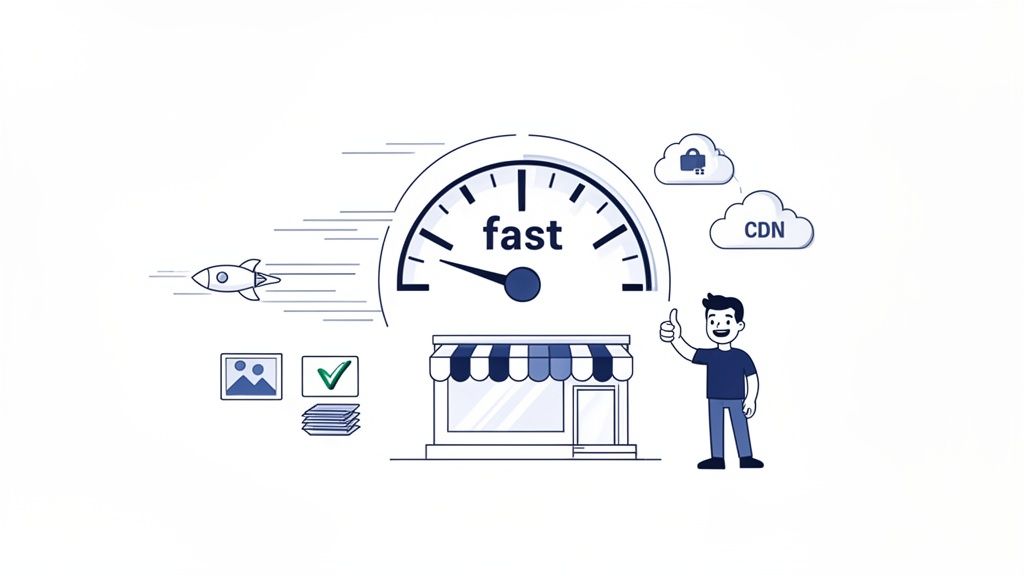
In ecommerce, speed isn't just a nice-to-have feature; it's a currency. Every single second a customer waits for your page to load is a second they might just give up and go somewhere else. A slow website is the number one cause of cart abandonment, directly costing you sales and frustrating would-be loyal customers.
The good news? With a self-hosted WordPress site, you’re in the driver's seat. You have total control over the things that make or break your store's performance.
This isn’t about chasing abstract tech scores. It’s about building a snappy, enjoyable shopping experience that translates directly into more profit.
Start with a Lightweight Foundation
The biggest drag on your site’s speed is almost always its theme. Many themes look incredible on the demo page, packed with flashy animations and complex page builders, but they come at a steep cost: performance. Every extra script and bloated stylesheet slows your store down.
For a WooCommerce store—especially one handling recurring subscription payments—simplicity is speed. Your best bet is to choose a theme that was built from the ground up to be lightweight and performance-focused. Look for clean code over flashy effects. A fast theme is the bedrock of a fast store.
Once your self-hosted WordPress site is running smoothly, you can focus on strategies like using SEO services for ecommerce to drive more qualified traffic to your newly optimized store.
Optimize Your Product Images
Great product photos are non-negotiable, but huge, unoptimized images are one of the most common speed killers. A single photo straight from a digital camera can be several megabytes, taking forever to load, especially for shoppers on their phones.
You don't have to choose between quality and speed. The trick is to be smart about optimization.
- Compress Your Images: Use a plugin like Smush or ShortPixel. They automatically shrink your image files without any noticeable drop in visual quality.
- Use the Right Format: JPEGs are great for photos. PNGs are best for graphics that need a transparent background. Even better, modern formats like WebP offer superior compression and are now supported by all major browsers.
- Lazy Load Everything: This brilliant technique only loads images right before they scroll into view. It drastically improves the initial load time, especially on category pages with dozens of products.
Every kilobyte you save on images is a direct win for your customer's experience. A page of small, optimized images will always feel faster and more responsive than a page with even one giant, uncompressed photo.
Implement Caching and a CDN
Think of caching as your website’s short-term memory. Without it, WordPress has to build every single page from scratch for every visitor, querying the database and piecing everything together. It’s slow and incredibly inefficient.
A caching plugin, like LiteSpeed Cache or WP Super Cache, solves this. It takes a snapshot of your page and serves that pre-built static version to visitors instantly. This one tweak can easily cut your load times in half.
A Content Delivery Network (CDN) takes this idea and goes global. It’s a network of servers around the world that stores copies of your site's static files—like images, CSS, and JavaScript. When a customer from another country visits your store, the CDN delivers those files from a server physically close to them.
This dramatically cuts down on latency, ensuring a fast and consistent experience for everyone, no matter where they are. Combining local caching with a global CDN is the one-two punch for elite performance on a self-hosted WordPress site. For more ideas on improving your sales funnel, check out our guide on how to customize the WooCommerce checkout page.
Answering Your Top Questions About Self-Hosting
Thinking about a self-hosted WordPress site? It’s a smart move, but it's natural to have questions. This is where we clear up the confusion and bust a few myths.
Let's tackle the big concerns that come up for every store owner, so you can get a realistic picture of what true ownership looks like.
Is a Self-Hosted WordPress Site Expensive to Run?
Let's talk about the cost, because that's often the first question on everyone's mind. The short answer is: it’s surprisingly affordable and scales with you.
Your main costs are a domain name (usually $10-$20 per year) and your web hosting. When you're just starting, a simple shared hosting plan can be as cheap as $3-$5 per month.
As your WooCommerce store grows, you'll naturally want more power. Upgrading to a more robust plan, like a VPS or Managed WordPress hosting, might run you $30-$100+ per month. But by then, your revenue will justify the cost.
Think of it this way: you're investing in an asset you completely own. Unlike other platforms that take a cut of your sales, you're not penalized for success. You control the spending and scale it as your business grows.
Do I Need to Be a Developer to Manage a Self-Hosted Site?
Absolutely not. This is probably the biggest, most outdated myth about self-hosting. The WordPress of today is built for entrepreneurs and business owners, not just coders.
Getting started is surprisingly simple. Most quality hosting providers offer “one-click” WordPress installation, meaning you won’t have to touch a single line of code.
From there, the WordPress dashboard is incredibly intuitive. Powerful tools like WooCommerce and WPSubscription are designed with a clean, no-code setup. Day-to-day tasks like adding products, managing subscribers, or writing blog posts are all done in a user-friendly visual interface. While you can hire a developer for complex custom features, it’s not a requirement to run a successful store.
The reality of a self-hosted WordPress site in 2026 is that it's more accessible than ever. The tools are designed for business owners, empowering you to build and manage your store without needing a technical background.
Why Is Self-Hosting Better for a Subscription Business?
For a subscription business, a self-hosted site isn't just an option—it's the ideal foundation. When paired with a plugin like WPSubscription, the advantages are huge.
Total Control Over the Customer Journey: You design the entire experience. There are no platform rules limiting how you build your subscription dashboard or interact with members, creating a seamless, on-brand journey.
Complete Data Ownership: All of your customer and subscription data belongs to you, and only you. This is non-negotiable for understanding your business, tracking churn, and making smart decisions without a third party looking over your shoulder.
Unlimited Tool Integration: Need a specific marketing, analytics, or CRM tool? You can install it. There's no one to ask for permission and no extra platform fees for connecting the tools that help you grow.
Guaranteed Performance for Renewals: Recurring billing has to be reliable. With self-hosting, you choose a plan powerful enough to process renewals on time, every single time. This means predictable revenue and happy, long-term customers.
What Happens If My Hosting Company Is Not Good Enough?
This is a fantastic question, and the answer highlights one of the biggest perks of self-hosting: you are never locked in.
If your hosting provider starts letting you down—maybe the site gets slow, the support is terrible, or prices go up—you can simply move your entire website to a new host.
Because you own 100% of your website files and your database, you have total portability. Many top hosting companies even offer free or cheap migration services to make the switch completely painless. This freedom ensures your store always has the best home possible, letting you adapt as your business needs change without ever having to start over.
Ready to build a predictable, recurring revenue stream on your self-hosted WordPress site? WPSubscription makes it simple to launch and manage subscription products with automated billing, flexible payment options, and a seamless customer experience. Get WPSubscription today and start growing your revenue.