The best plugins for WordPress ecommerce are the ones that turn your basic website into a real, money-making online store. For most people, that journey starts with WooCommerce, but it certainly doesn't end there. You'll need to add other critical tools, like a great payment processor and a system for recurring revenue like WPSubscription.
Building Your Ecommerce Powerhouse with WordPress Plugins
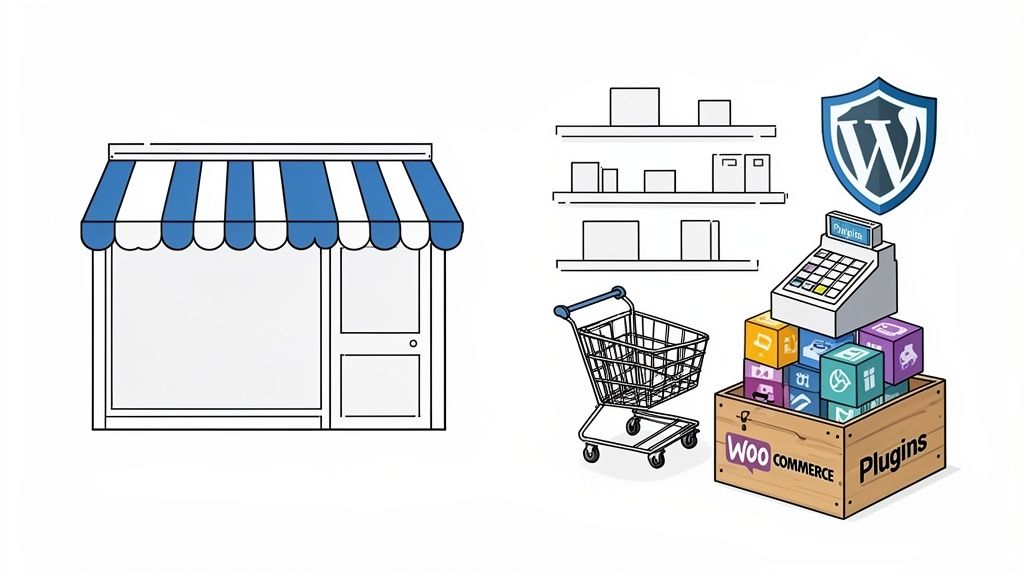
Think of a fresh WordPress installation as an empty storefront. You have a great location and a front door, but you can't actually sell anything. There's no cash register, no shelves for your products, no way to manage inventory. In the world of WordPress, plugins for wordpress ecommerce are that essential equipment.
These tools are the engine of your online business. They handle every step of the customer journey—from adding a product to the cart, to payment, to the confirmation email and beyond. Without them, you just have a pretty catalog with no way to make a sale.
The Foundation: WooCommerce
For nearly everyone starting an online store with WordPress, the first step is installing one powerhouse plugin: WooCommerce. It’s the open-source foundation for your ecommerce dreams. Its popularity is staggering—WooCommerce holds a massive 33.4% market share of all online stores, running on about 4.53 million live websites.
Because it's so widely used, a huge ecosystem of other plugins has been built to work seamlessly with it. This creates a flexible, powerful platform you can customize to your heart's content.
Think of WooCommerce as the chassis and engine of a car. It provides the core structure and power. Other plugins are the upgrades—a better GPS, a premium sound system, or performance tires—that you add to tailor the vehicle to exactly what you need.
Your Core Ecommerce Toolkit
Once you have WooCommerce installed, it's time to build out your toolkit. A few categories of plugins are absolutely essential for running a modern, functional store. These tools need to work together to create a smooth experience for you and your customers.
To give you a clearer picture, we've broken down the essential plugin types every functional WordPress store needs.
Core Plugin Categories for Your WordPress Ecommerce Store
| Plugin Category | Core Function | Example Use Case |
|---|---|---|
| Shopping Cart & Checkout | Provides the interface for customers to select products and complete their purchase. | A plugin that offers a one-page checkout to reduce cart abandonment. |
| Payment Gateways | Securely processes online payments through services like Stripe, PayPal, or Paddle. | Integrating Stripe to accept credit card payments directly on your site. |
| Shipping & Fulfillment | Automates shipping rate calculations, label printing, and order tracking. | A plugin that pulls real-time shipping rates from carriers like USPS or FedEx. |
| Subscriptions & Recurring Revenue | Manages automated billing for memberships, services, or subscription boxes. | Using WPSubscription to sell a "Coffee of the Month" club with monthly billing. |
This table covers the bare essentials. By thoughtfully choosing plugins from each of these categories, you can transform a simple WordPress site into a robust ecommerce machine, ready to take orders and serve customers 24/7.
Choosing Key Plugins to Scale Your Online Store
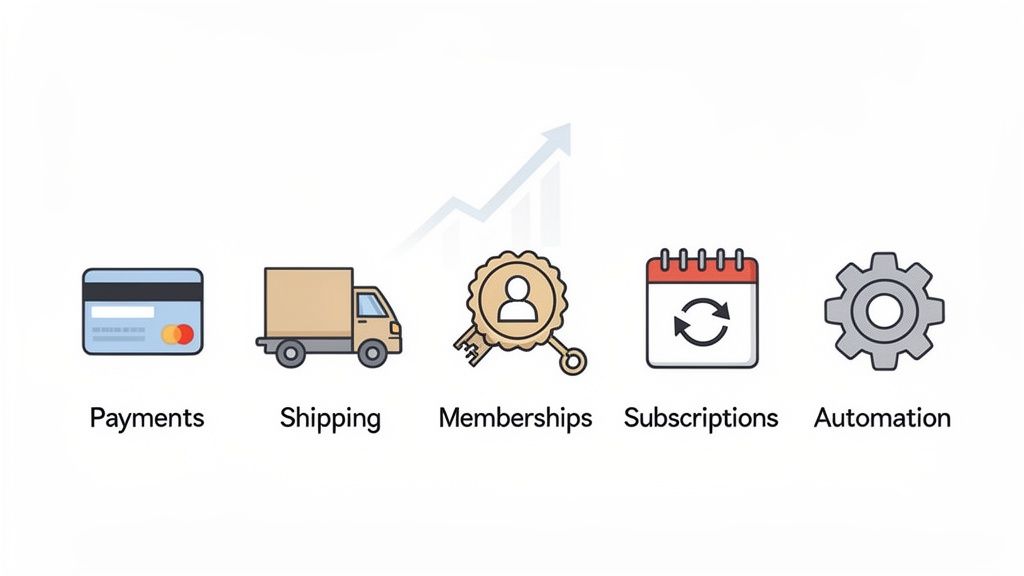
Getting your store live is just the beginning. The real work—and the real growth—starts now. This is where you move beyond the basics and start using strategic plugins for wordpress ecommerce to truly scale your business.
Think of it like hiring specialists for your team. You're bringing in a payments expert, a logistics coordinator, and a customer retention pro. Each plugin should solve a real problem or automate a tedious task, freeing you to work on your business, not just in it.
Fortifying Your Checkout with Payment Gateways
Let’s be honest: the checkout is where you make or break a sale. If your payment process feels clunky, slow, or untrustworthy, you're practically handing customers to your competition. Your payment gateway is the digital bridge between your store and your bank, and it needs to be rock-solid.
The goal is to make paying you as easy and reassuring as possible. That means offering the payment methods your customers already know and trust.
- Stripe: A favorite for a reason. Its powerful API and top-notch security allow you to process credit cards directly on your site, creating a seamless experience.
- PayPal: You simply have to offer it. With its massive user base, PayPal gives millions of shoppers a familiar, one-click way to pay without grabbing their wallet.
- Mollie: If you sell in Europe, Mollie is a must. It supports crucial local payment methods like iDEAL and Bancontact, which can dramatically boost conversions across the continent.
Ultimately, choosing a payment plugin is all about reducing friction. The easier you make it for someone to give you money, the more often they will.
Automating Logistics with Shipping and Fulfillment Plugins
Selling physical goods? Logistics can quickly turn into a full-time job. Manually calculating rates, printing labels, and sending tracking updates just isn’t going to work as you grow. This is where a good shipping plugin acts as your new operations manager.
These tools plug your WordPress dashboard directly into carriers like UPS, FedEx, or your local postal service. They pull real-time rates, let you print labels in bulk, and automatically email customers their tracking information. This level of automation saves countless hours and keeps your orders accurate and on time.
Building Predictable Income with Memberships and Subscriptions
The holy grail of e-commerce is recurring revenue. Instead of chasing one-off sales, a subscription model builds a stable, predictable cash flow you can count on. It lets you forecast with confidence and stop worrying about slow months. This is exactly where tools like WPSubscription come into play.
These plugins are your key to breaking free from the feast-or-famine sales cycle. They allow you to sell access to exclusive content, offer product-of-the-month clubs, or provide software as a service—all with automated billing.
A great subscription plugin is more than just a tool; it's a critical business asset. For example, WPSubscription gives your customers a self-service dashboard to manage their own plans. They can upgrade, pause, or cancel without sending you a single email. This simple feature cuts down your admin work and keeps customers happy.
In the massive WordPress ecosystem, with over 59,000 free plugins, WooCommerce remains the undisputed king. It holds a 68% distribution among e-commerce tools and is expected to power over 6.3 million active stores by 2026. Since it runs 93.7% of all WordPress e-commerce sites, it's the foundation you'll almost certainly build on.
As you grow, you'll find new ways to expand your reach. For instance, an affiliate marketing plugin for WordPress can empower others to sell your subscriptions for you, creating a powerful new sales channel. By layering the right specialty tools onto your WooCommerce core, you can build a truly scalable and profitable online business.
How to Add Subscriptions with WPSubscription
Switching from one-time sales to a recurring revenue model can feel like a huge project, but the right plugin turns a complex strategy into a few straightforward steps. With a tool like WPSubscription, we can break down the entire process.
Let's walk through exactly how to set up your very first subscription product. Think of this as a mini-tutorial showing you how to install the plugin, link your payment gateway, and build a subscription that’s ready for your first customer.
Step 1 Install and Activate WPSubscription
Your journey starts right where you're most comfortable: the WordPress dashboard. Just like any other plugin, the first step is getting it installed.
- Head over to Plugins > Add New in your WordPress admin area.
- Upload the WPSubscription
.zipfile you received after your purchase. - Click Install Now, and once it's done, hit Activate Plugin.
With the plugin active, you'll see a new "WPSubscription" menu in your sidebar. This is your new command center for everything related to recurring income, from managing your plans to checking payment history.
Step 2 Configure Your Payment Gateway
Before you can sell anything, you need a way to get paid automatically. WPSubscription plays nicely with major gateways like Stripe and PayPal, which take care of all the secure, automated billing for you.
For this example, we’ll connect Stripe, a popular choice known for its reliability.
- Go to WPSubscription > Settings > Payments.
- Select Stripe and click the "Connect with Stripe" button.
- You’ll be sent over to Stripe to securely log in and authorize the connection. This uses Stripe Connect, so you never have to copy and paste sensitive API keys; the two systems link up securely behind the scenes.
Once connected, your store is officially ready to handle recurring payments. You can forget about chasing down invoices or manually charging customers each month—the plugin and gateway manage it all.
Step 3 Create Your First Subscription Product
Now for the exciting part: actually building the product you're going to sell. This all happens inside WooCommerce, but with powerful new subscription options unlocked by WPSubscription.
- Go to Products > Add New in WordPress.
- Give your product a clear name, like "Premium Weekly Newsletter" or "Monthly Coffee Box."
- In the "Product data" section, change the dropdown from "Simple product" to "Simple subscription".
That one change opens up all the recurring billing settings. You can now set the price, the billing interval (like every week, month, or year), and even add a free trial period to draw in new customers.
A key feature here is the ability to offer a free trial. For example, setting a "7-day free trial" allows customers to sign up without being charged immediately, which can significantly boost conversion rates for new services.
Here’s a peek at the WPSubscription dashboard, which gives you a clean, simple view of your subscription business.
This dashboard gives you a clear overview of active plans, recent payments, and total recurring revenue, making it easy to track the health of your subscription business.
After setting up the subscription details, just publish the product. You can feature it on your store’s homepage or a special landing page, just like any other WooCommerce product. When a customer buys it, WPSubscription automatically starts their recurring plan and schedules their future payments. To learn more about how different plugins for wordpress ecommerce can work together, you might be interested in our guide on expanding your store's functionality.
How to Evaluate and Choose the Right Ecommerce Plugins
With tens of thousands of plugins for wordpress ecommerce out there, the WordPress directory can feel like a wild, overwhelming place. How do you find the gems and steer clear of the ones that will break your site?
The secret is to stop treating plugins like simple add-ons and start thinking of them as potential employees for your business. You wouldn't hire someone without an interview, right? The same logic applies here. A great choice isn't just about a flashy feature list; it’s about reliability, security, and long-term stability. A bad plugin can slow your store to a crawl, open up security holes, or clash with your other tools, causing lost sales and endless headaches.
The Four Pillars of Plugin Evaluation
To make a smart choice every time, your evaluation should stand on four key pillars. Each one covers a crucial aspect of a plugin's quality and its real-world impact on your store. Don't skip any—a plugin that looks great on paper but kills your site speed is a liability, not an asset.
- Compatibility: Does it play nice with others? A plugin has to work perfectly with your WordPress version, your theme, and other critical tools like WooCommerce.
- Performance: A fast site makes more money. It’s that simple. Some plugins are resource hogs that will dramatically slow down your store, a surefire way to increase cart abandonment.
- Security: This is completely non-negotiable. A plugin with sloppy code can become a backdoor for hackers. You absolutely have to vet the developer and their commitment to keeping their code safe.
- Support & Documentation: When things go wrong—and they sometimes do—you need a lifeline. Good documentation and responsive support can turn a full-blown crisis into a minor speed bump.
Before diving deep into WordPress plugins, it's a good idea to understand where WooCommerce fits in the broader landscape of the best ecommerce platforms for small business.
Your Plugin Evaluation Checklist
Before you even think about clicking that “Install Now” button, you need a system. A repeatable checklist helps you spot red flags and choose tools that will actually strengthen your business.
Think of this checklist as a background check. You wouldn't hire a key employee without checking their references. Apply that same diligence to the code you're about to run on your store.
The process of adding powerful new features doesn't have to be complicated. With the right plugin, even something like recurring revenue can be broken down into a few simple steps.
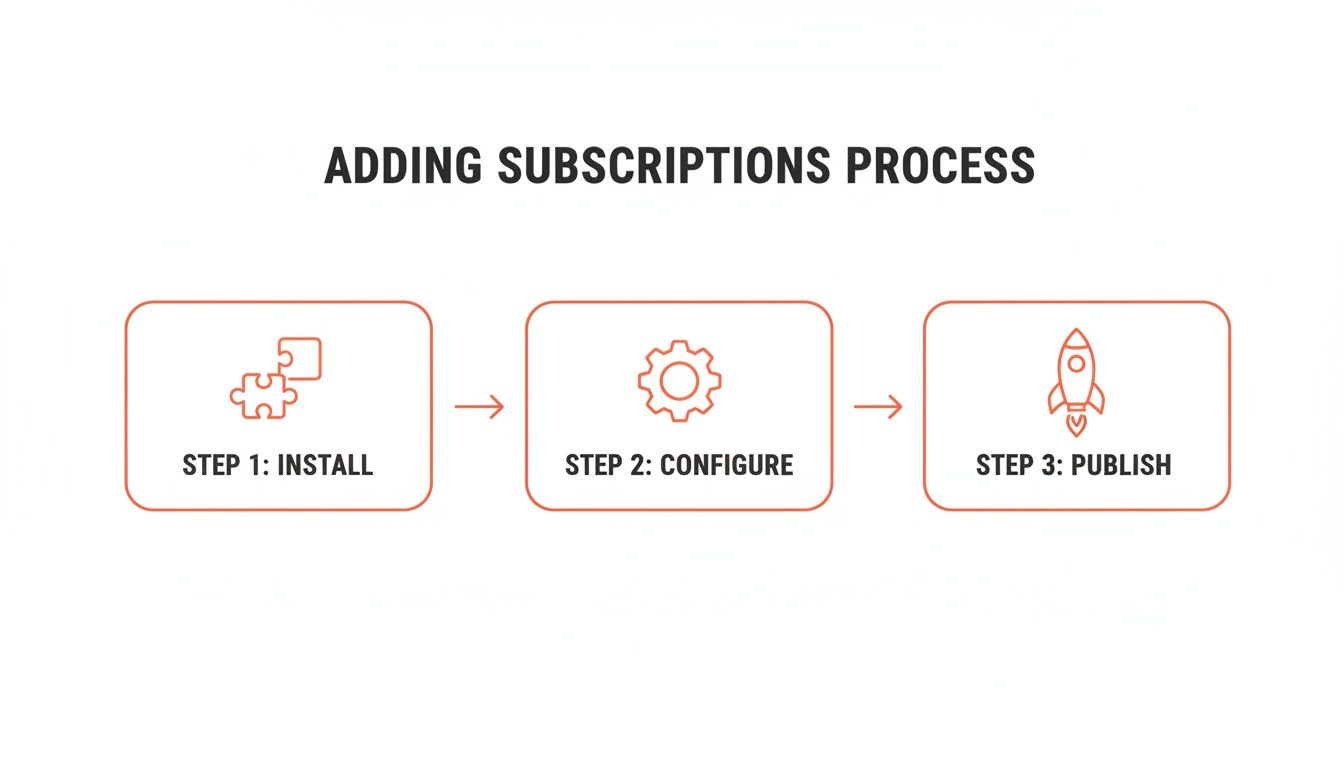
This workflow shows how a good tool simplifies everything into a manageable process: install, configure, and publish.
Here's a table to guide your decision-making. Use this to give any potential plugin a thorough once-over.
Your Plugin Evaluation Checklist
| Evaluation Criterion | What to Look For | Potential Red Flag |
|---|---|---|
| Active Installations | 10,000+ is a good sign of trust and stability. | Less than 1,000 installations might mean it's new or unpopular. |
| Last Updated | Updated within the last few months. | Not updated in over 6 months. |
| Ratings & Reviews | High average rating (4.5+ stars) with recent positive reviews. | A pattern of 1-star reviews mentioning crashes or poor support. |
| Compatibility | Explicitly tested with the latest version of WordPress and WooCommerce. | "Untested" or "Not tested with your version of WordPress" warning. |
| Support Forum | Recent, resolved support threads with helpful developer responses. | Unanswered questions or threads that are months old. |
| Documentation | Clear, detailed setup guides, FAQs, and developer docs. | Missing or confusing documentation. |
By following this checklist, you’ll be in a much better position to choose plugins that are assets, not liabilities.
A Practical Vetting Process
Okay, let's make this real. When you find a plugin that looks promising, here’s exactly how to vet it.
Check the Stats: On the plugin's WordPress page, find the last updated date. If it’s been more than six months, proceed with caution. Next, look at the active installations and ratings. High numbers and great reviews are powerful social proof that the plugin is reliable.
Read the Reviews—Especially the Bad Ones: Don't just scan the 5-star praise. Dive into the 1-star and 2-star reviews. What are the common complaints? Is it poor support, site crashes, or missing features? This is where you'll find clues about the potential headaches you might face down the road.
Test on a Staging Site: Never, ever install a new plugin on your live store first. Always use a staging site—a private clone of your website—to test for conflicts, bugs, and performance hits. This is your safety net. It lets you experiment without risking your actual business. Run a speed test before and after activating the plugin to see exactly how it impacts your site's performance.
Avoiding Common Pitfalls with WordPress Plugins
The right plugins for wordpress ecommerce can feel like superpowers for your store, but the wrong ones can bring it all crashing down. It’s easy to get excited by a shiny new feature and hit "install," but that path often leads to a minefield of conflicts, security holes, and a painfully slow website.
Navigating this world is all about knowing the common mistakes and learning how to sidestep them. With a bit of strategy, you can make sure your plugins are powerful assets, not dangerous liabilities that lose you sales and customer trust.
The Dangers of Plugin Bloat
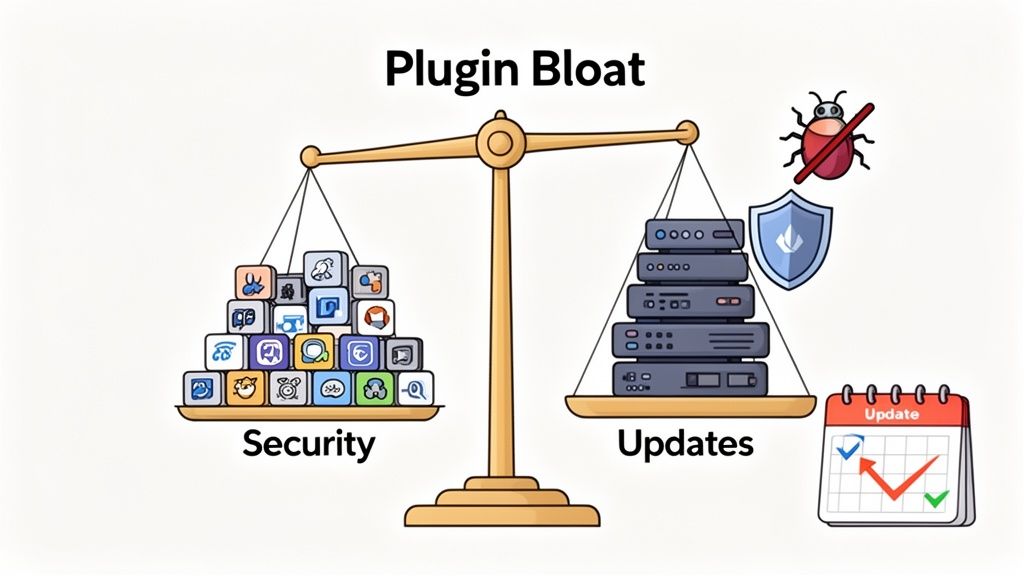
"Plugin bloat" is what happens when you install too many plugins, or even just a few that are poorly coded and hog resources. Each active plugin is like a small program running on your site. The more programs you run, the slower everything gets.
And a slow website is a conversion killer. A mere one-second delay in page load time can sink your conversions by a staggering 7%.
Bloat doesn't just hurt your speed; it also creates a bigger attack surface. Every plugin adds code, and if even one is neglected by its developer, it can become an open door for hackers.
Solution: The Plugin Audit
Schedule a quarterly review of every single plugin you have installed. For each one, ask yourself: "Is this absolutely essential to how my store runs or how my customers shop?" If the answer is no, deactivate and delete it. It’s better to find one great multi-functional plugin than to use three single-purpose ones.
Your goal should be a lean, efficient store. Every tool must justify its place on your site and the performance cost that comes with it.
The High Cost of "Nulled" Plugins
The lure of a "free" premium plugin is strong, but using "nulled" or pirated software is a catastrophic mistake. These plugins are almost always packed with malware designed to steal customer data, inject spammy links, or hijack your site entirely.
On top of that, you get zero support and zero updates. When a security flaw is found—and it will be—you are left completely exposed. The "savings" are instantly wiped out by the cost of cleaning up a hacked site and a shattered reputation.
Ignoring Updates Is a Security Gamble
Those update notifications in your WordPress dashboard aren't just suggestions. Ignoring them is like leaving your store's front door unlocked overnight. Developers release updates not just for new features, but to patch security holes as they're discovered.
Here's why you must update promptly:
- Patching Vulnerabilities: Updates often contain fixes for security flaws that hackers are actively using to break into sites.
- Ensuring Compatibility: They keep the plugin working smoothly with the latest versions of WordPress, WooCommerce, and your other tools.
- Improving Performance: Updates can include code optimizations that make your site run faster and more efficiently.
A great way to improve your store's experience is to focus on a frictionless checkout process. You can learn more about how to customize the WooCommerce checkout page in our dedicated guide.
The Staging Site Safety Net
Never, ever test on your live store. A staging site—a private clone of your live shop—is your most important safety net for preventing plugin disasters.
Think of it as a sandbox. It's a safe place to install, update, and test plugins without any risk to your customers or sales data. Use it to check for conflicts, measure performance hits, and make sure everything works perfectly before pushing any changes to the real world.
Frequently Asked Questions About Ecommerce Plugins
As you build out your store, questions about plugins are bound to pop up. It's completely normal to wonder about the best way to handle them, what's safe, and how to make the right choices for your business.
Let's clear up some of the most common questions store owners ask. Think of this as your go-to guide for managing your store’s plugins with confidence.
How Many Plugins Are Too Many for an Ecommerce Site?
This is easily one of the most common questions, but there’s no magic number. The honest answer is that quality and necessity are far more important than quantity. A fast site running 15 essential, well-coded plugins will always beat a slow one struggling with 30 bloated or redundant ones.
The real test is your site's performance and stability. Instead of just counting plugins, look at their actual impact.
- Performance Impact: Use a tool like GTmetrix to check your site's speed. Even a one-second delay can lower conversions by 7%, so every millisecond matters.
- Essential Functionality: Does this plugin do something critical for your business? Is it directly helping you sell, manage shipping, or make customers happier?
- Redundancy: Do you have several plugins doing the same job? For instance, using two different form plugins is just inefficient and adds unnecessary weight.
The best practice is to do a plugin audit every quarter. Go through your list and ask for each one: "Is this tool actually pulling its weight?" If a plugin isn't providing clear value, it's time to deactivate and delete it. This keeps your site fast and reduces security risks.
This disciplined habit is far more valuable than sticking to an arbitrary number.
What Is the Difference Between Free and Premium Plugins?
Choosing between free and premium plugins for wordpress ecommerce is a classic trade-off: cost versus value. Both have their place, but knowing the difference helps you invest your money where it counts.
Free plugins, usually from the official WordPress repository, are great for getting started or for non-critical features like adding social media icons. They handle simple tasks well, but they often come with significant limitations.
Premium plugins, on the other hand, are a business investment. When you buy a plugin like WPSubscription, you’re not just getting code—you’re getting a full solution.
Here’s a quick breakdown of what that investment gets you:
- Advanced Features: Premium plugins provide powerful, specialized tools you won’t find in free versions, like automated recurring billing or detailed analytics.
- Dedicated Support: When a critical function breaks, you need help, fast. Premium plugins give you access to expert support teams who can fix problems quickly.
- Regular Updates & Security: A paid plugin has a business model that funds ongoing development. This means you get consistent updates that patch security holes and ensure it works with the latest version of WordPress.
- Detailed Documentation: You get access to comprehensive guides, video tutorials, and knowledge bases to help you use the tool effectively.
For critical functions like payments, security, or subscriptions, investing in a premium plugin is almost always the right move. It ensures your store is reliable, protects your revenue, and gives you a partner to rely on.
Is It Safe to Switch a Core Ecommerce Plugin on a Live Store?
Switching a core plugin—like your payment gateway, subscription manager, or even the main ecommerce engine—on a live store is a high-stakes move. It's like performing open-heart surgery on your business. It demands careful planning and should never be done on a whim.
The biggest risk is data migration. You're dealing with sensitive customer data, order histories, and active subscriptions. A messed-up migration can lead to lost data, failed payments, and a flood of angry customer emails.
Never, ever perform a major plugin switch on your live site first. I can't stress this enough. The risk of catastrophic data loss or expensive downtime is just too high.
To handle this safely, follow a strict, step-by-step process:
- Full Backup: Before you touch anything, create a complete backup of your site’s files and database.
- Staging Environment: Use a staging site—a private copy of your live store—to do the switch. Test the new plugin thoroughly to make sure all data transfers correctly and there are no conflicts.
- Data Validation: On the staging site, meticulously check customer records, order history, and subscription details to confirm everything moved over accurately.
- Professional Help: For a complex switch, seriously consider hiring an experienced WordPress developer. Their expertise can save you from making very costly mistakes.
How Do I Check if a WordPress Plugin Is Secure?
Making sure your plugins are secure is one of your most important jobs as a store owner. A single bad plugin can open the door for hackers to steal customer data and ruin your reputation.
First things first: only download plugins from the official WordPress.org repository or from trusted commercial developers. Avoid "nulled" or pirated plugins completely; they are almost always packed with malware.
Next, put on your detective hat and look for these signs of quality:
- Last Updated Date: Check the plugin's page. Has it been updated in the last few months? Frequent updates show the developer is actively fixing bugs and security issues. A plugin that hasn't been updated in over a year is a huge red flag.
- Active Installations: A large number of active installations (over 10,000, for example) shows that a large community trusts it.
- Reviews and Ratings: Read the recent reviews, especially the negative ones. They often reveal recurring problems with support, bugs, or security.
- Developer Reputation: Look up the developer or company. Do they have a professional website and a track record of building quality products?
Finally, be proactive. Install a good security plugin like Wordfence or Sucuri. These tools scan your site and its plugins for known issues and alert you to threats, adding an essential layer of protection to your store.
Ready to build a stable, predictable income stream for your store? With WPSubscription, you can easily add and manage recurring payments for any product or service. Get WPSubscription today and start growing your recurring revenue.